Pages

Showing posts with label others. Show all posts

Sunday, August 8, 2010

Get your LAN IP Address in Mac OS X

Anytime you are connected to a local area network (LAN) you’ll be assigned an IP address for that network, and often it’s important to know what this IP address is. There’s two quick ways to get your LAN IP address in Mac OS X, one is more user friendly using the GUI and the other is through the command line.

Find your LAN IP address via the Mac OS X GUI

  • Open “System Preferences”
  • Click on “Network”
  • Your Airport or Ethernet LAN IP address will be visible immediately next to “Status” with the next: “Airport is connected to RouterName and has the IP address of x.x.x.x” The x.x.x.x numbers are your LAN IP
lan ip address mac


Check your LAN IP address via the Mac OS X command line

This is my preferred method to check for the LAN IP because I find it faster. If you’re not comfortable with the command line then it’s probably better to just use the GUI method above.
Launch the Terminal and type the following:

ipconfig getifaddr en1 en1 is the code for the Airport interface, en0 is usually ethernet. Once this command is executed, an IP address will be reported back to you, and this is your IP on the LAN.

Troubleshooting and setting IP addresses in Mac OS X

Knowing your machines IP address can be a big help when you are troubleshooting network problems or setting up a LAN. If you’re encountering trouble with your Macs wireless check out these troubleshooting tips for Mac wireless problems. Sometimes you’ll want to set a manual IP address on your Mac and that isn’t difficult either.

OSD-Lyrics Turns Your Linux Media Player into a Karaoke Machine

OSD-Lyrics Turns Your Linux Media Player into a Karaoke Machine

Linux: We've featured an open source SingStar-like karaoke game before, but if you're looking for something a bit simpler, OSD-Lyrics automatically downloads and displays lyrics for a ton of popular Linux media players.

If you've been looking for other alternate uses for your Linux-based HTPC, you can check karoke machine off the list by installind OSD-Lyrics. Unlike previously mentioned UltraStar, it's not a full-fledged game; instead, it just displays lyrics for a number of different media players like Amarok, Banshee, Exaile, Rhythmbox, and Songbird (to name just a few).

Surprisingly, it works very well. It downloads and displays all the lyrics automatically, and somehow magically knows where each line begins and ends in a song, so you have to do little, if any, work to get it up and running. Just start up the application, play a song, and go to town. If you want a more genuine karoke experience, you'll have to seek out some vocal-less tunes yourself, although you can always just hook up a microphone and sing along with the full versions of songs you already have.
OSD-Lyrics is a free download for Linux machines.

Friday, August 6, 2010

Control multiple PC with one Mouse & Keyboard

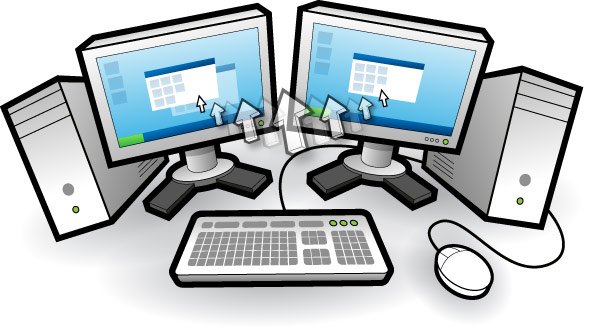
Want to Control Multiple PC with Same Mouse and Keypad than you have to try Input Director,  it a free app which allows you to control multiple Windows systems using the keyboard/mouse attached to one computer. With Input Director, you can share a single keyboard/mouse across a set of systems. You switch which system receives the input either by hotkey or by moving the cursor so that it transitions from one screen to the other (in a very similar fashion to a multi-monitor setup).

Using Input Director, you will be able to position the monitors of your systems side-by-side and then control all of them via one keyboard/mouse. Input Director also supports a “shared” clipboard, in which you can copy data onto the clipboard on one system, transition across to another and paste.


Features of “Input Director”:

Easy to Use:

· Easy to follow installation and usage guides – setup only takes a few minutes
Tell Input Director how your monitors are positioned simply by dragging them to the correct spot on the monitor grid:
· Multi-monitor support
· Shared Clipboard – copy and paste between computers (including files!)
Manage all your computers at once:
· Simultaneously lock all computers
· Synchronise the screensavers across your computers
· Synchronise shutdown of your system (or individually configure whether a computer goes to standby, hibernate or shuts down)

Security:

· Encrypt network data between Input Director controlled computers using AES with a 128, 192 or 256bit key
· Lock down the Input Director configuration so that only Administrators may make changes
· Systems can limit which master systems can control them by host name or network subnet
Transition Features:
Ripples surround the cursor for a few seconds after transitioning to help the eye follow the cursor from one computer to another:
Transitioning using the mouse can be setup to occur:
· Immediately when the cursor hits the edge of the screen
· If the screen edge is double tapped by the cursor
· If the cursor momentarily pauses at the edge of the screen
· Can be configured to limit transitions near the corners of computer monitors to avoid accidental slippage between systems
· Can also set a key (or keys) that must be held down to permit transitions between systems
· Hotkeys can be setup to switch control to a specific computer or move to the next computer to the left or right

Download Input Director Here

Wednesday, August 4, 2010

Shut Up and Be Secure - Power of Social Engineering

Human is the most weakest part of the Information Security chain. Psychologists have identified many benefits people receive when they help others. Helping can make us feel empowered. It can get us out of a bad mood. It can make us feel good about ourselves. Hackers find many ways of taking advantage of our inclination to be helpful.
Click Image To Enlarge
Because Hackers often target people who don’t know the value of the information they are giving away, the help may be seen as carrying little cost to the helper. Most of Humans tend to explain thier behaviour and of others, while doing this we give away alot of information about us.
Security is too often merely an illusion, an illusion sometimes made even worse when gullibility, naivete, or ignorance come into play. The world’s most respected scientist of the twentieth century, Albert Einstein, is quoted as saying, “Only two things are infinite, the universe and human stupidity, and I’m not sure about the former.” In the end, social engineering attacks can succeed when people are stupid or, more commonly, simply ignorant about good security practices.
With the same attitude as our security-conscious homeowner, many information technology (IT) professionals hold to the misconception that they’ve made their companies largely immune to attack because they’ve deployed standard security products – firewalls, intrusion detection systems, or stronger authentication devices such as time-based tokens or biometric smart cards.
Anyone who thinks that security products alone offer true security is settling for. the illusion of security. It’s a case of living in a world of fantasy: They will inevitaby, later if not sooner, suffer a security incident

Tuesday, August 3, 2010

Starcraft 2 Mac Problems, Crashes, and Fixes

starcraft 2 mac problems and fixes


Starcraft 2 has been out for about a week now and since launch date my life has basically revolved around the game (I’m a nerd, I know). The game is an absolute blast and you should buy it if you like real time strategy games. Now all that said, it’s not without problems. Despite a lengthy beta testing period, there are still some pretty annoying bugs and crashes in SC2, particularly for Mac users who have NVidia hardware.

Here is the known problem list for the Starcraft 2 Mac client, and more importantly some potential fixes for the problems:

* No user interface or menus – if you are missing user interface elements, try quitting and restarting the game, or do a full system restart

* Random crashes with Mac OS X 10.6.4 and NVidia graphics hardware – no current workarounds, Blizzard is aware of the problem and working on it

* NVidia hardware dramatically underperforms in Mac OS X – potential driver issue, reduce graphics settings to lower settings until a fix is released

* Mac OS X underperforms compared to Windows on the same hardware – similar to the above problem, there is speculation this is a Mac OS X video driver problem. The extent of the performance hit varies from system to system, further suggesting it’s related to video drivers. Lower graphics settings for the time being, or run the game in bootcamp.

* MacBook Pro overheats and game stutters in gameplay and cutscenes – possibly related to above graphics driver problems, some users report adding the following two lines to their variable file helpful (variables is located at ~/Documents/Blizzard/Starcraft II/variables.txt):
frameratecap=40
frameratecapGlue=30
This forces your frame rates to cap at a consistent level, some hardware is overworking when it doesn’t need to be thus sending your MacBook Pro into a ridiculously hot CPU eating festival with itself and crash city. This actually works on other hardware too if it’s overheating during cutscenes and videos.

* Black screen on startup but sound plays anyway – switch from fullscreen to windowed mode (Command+M), or do a system reboot

* Huge performance hit when using USB Headset with some NVidia hardware (GeForce 9400M in particular) – unplug the USB headset for now, Blizzard is working on a fix

* Mouse gets stuck off screen in dual monitor setups – if this happens, switch to windowed mode (Command+M) and back into full screen mode, usually your mouse will be released.

This is part of the official known Mac problem list from Blizzard, hopefully we’ll get an update soon to patch up the serious bugs and performance issues.

You can test your own game performance by showing frames per second within Starcraft 2, just hit Option+Control+F while anywhere in the game and a framerate counter will appear in the upper left corner.
Even though the Mac system requirements for Starcraft 2 are relatively low, they should not be counted on at this point due to the above problems. Even some of the best hardware is underperforming in Mac OS X. If you want the game to perform it’s absolute best, carefully watch the frame rate in response to graphics changes, and have things like “Shaders”, “Shadows”, and “Lighting” set to Low and “Reflections” set to Off, although you can generally have the resolution native and game textures medium to high and still retain decent performance.

[via]

Monday, July 19, 2010

5 Tips for Making a Hot Laptop Cooler

Laptop computers naturally run hot (or at least very warm), and if they stay hot for prolonged periods of time they may overheat and cause serious damage. Whether or not you're experiencing the warning signs and dangers of your laptop overheating, the simple and inexpensive protective measures below will help keep your laptop cooler and make it work more reliably.


5 easy tips to cool a hot laptop

1. Adjust your power settings from "high performance" to a more "balanced" or "power saver" plan. This will tell the system to only use the power required to run your applications, rather than always using the maximum processor speed; if you need to play games or other intensive work, you can switch back to the high performance plan as necessary.

2. Use dust remover spray to clean out of the laptop's vents. Dust can accumulate in and block the laptop's fan vents -- a problem easily solved with a can of compressed gas (~$10). Turn off your laptop and spray the vent to remove the dust.

3. Use a laptop cooling pad that has a fan or two. Laptop pads that have vents but no fans can also increase the air flow around your laptop and they're very portable, but for stronger cooling needs, a fan is the best way to go.

4. Keep your working environment or computer room as comfortably cool as possible. Computers, like most people, work much better in air conditioned environments. Most server rooms or data centers operate at 70 degrees or below, according to Server Fault, and that seems like an ideal temperature recommendation for home offices as well.

5. Shut down your computer when not in use, and especially when you are not at home. The last thing you need when you get home is to find out your laptop was a fire hazard (one of the dangers of overheating laptops).

Taking the steps above brought down the internal temperature of an old and dangerously hot laptop from 181° Fahrenheit (83° Celsius) to 106° F (41° C) -- a difference of 41% after one hour of using the active laptop cooling pad and bringing the room temperature down to 68 degrees.