Pages

Showing posts with label iPhone. Show all posts

Tuesday, September 14, 2010

EBay Bringing Mobile Apps Into the Future

Look out Google, you may have a new, unlikely challenger. 


EBay Bringing Mobile Apps Into the Future

Google
may be the first place people turn to for Web search, but the head of
eBay's mobile efforts, Steve Yankovich, hopes to make eBay the first
place that people look on their phones when searching for a product to
buy.


"I want to replace Google as the de facto 'Where do I start,'" he said.

Yankovich,
who's been with eBay for less than a year-and-a-half, is hoping to
bring the company's mobile offerings from behind the times to the
cutting edge.

Until the middle of last year, eBay users couldn't
make a purchase from their mobile phones. They could bid on auctions,
but if they won they had to pay later. There was no option to purchase
non-auction items immediately, either.


By the middle of last year, however, eBay users could buy items directly from a mobile eBay site or applications
like the one for the iPhone. By the end of 2009, customers had bought
US$600 million worth of products from their mobile phones, Yankovich
said.


He has expanded the team of people working on mobile
products at eBay from just a few to 15. They have released an iPhone
application for people interested in fashion and plan additional apps
for other categories like sporting equipment, consumer electronics,
motors and collectibles. EBay also offers mobile apps for Android and BlackBerry phones.


In
addition, eBay plans to incorporate selling capabilities into the next
version of its primary iPhone application. Today those selling features
are part of a separate app. Since the primary application has been
downloaded 12 million times, eBay expects the new version to encourage
many more people to sell from their phones, he said,


The company will also launch a "motors app" later this year that will
let people use a built-in barcode-reader feature to scan the Vehicle
Identification Number of a car and do a Carfax lookup. The app will also
let users enter the make and model of their own car and then filter
searches for compatible parts and accessories. 


Read More at PCWorld

Sunday, September 5, 2010

Useful iPhone Apps

Ever since the Apple iPhone came out, a whole slew of applications has been created and released for the device. Now, they not all exceptional, and even fewer are actually good, but then this list does not bother with the average or the mediocre. Reading on, you will discover the top 10 best iPhone apps that every iPhone user must own. Seriously, if it’s on this list, it should be on your iPhone! And now, without further ado, the list of the top 10 iPhone apps.


1. Google Mobile


 With this application on your iPhone, you’ll be able to find out
whatever you want about whoever or wherever! Imagine meeting a potential
business partner, and you need to know whether you can trust the
person. How do you make a snap decision about a thing like that? Just
whip out your iPhone, run a Google search for that person’s name, see
what comes up and then decide! Or if you’re visiting some new place and
don’t know what to do that evening, Google the local party hotspots, and
then suit up and head on toward the most happening parties in town!
Thanks to Google Mobile for iPhone, the information you’re looking for
is only a tap of the finger away.


2. Sport Tap


There can be no list of best iPhone apps without at least one
sports-related application being included in it. That one application in
this list is SportTap. It really is a great iPhone app, as it can be
used to keep sports fans posted about the scores of ongoing games,
players’ stats, dates of forthcoming matches in various sports and lots
more. Whether you’re into football, basketball, baseball, tennis or even
golf, SportTap can get you the information you want about your team or
your favorite player. Structured simply, this iPhone app lets you find
our live scores with ease, and thereby justifies its inclusion in this
list.


Evernote turns the iPhone, iPod Touch and iPad into an extension of
your brain, helping you remember anything and everything that happens in
your life. From notes to ideas to snapshots to recordings, put it all
into Evernote and watch as it instantly synchronizes from your iPhone to
your Mac or Windows desktop.


Hey Where Are You, or HeyWAY, is a new location service that lets you
keep track of where friends, family and colleagues are. Send alerts
with your current location to your followers, or send “Hey, Where Are
You?” alerts requesting their location.


5. Free Wi-Fi Finder


JiWire’s Global FREE Wi-Fi app uses your iPhone’s GPS and network
triangulation capabilities to locate free Wi-Fi Internet access. It has
over 10,000 locations worldwide and the Near Me search option is based
on your current location. It also allow you to search for specific
geographic regions.


Those were iPhone Apps which I think are the best. If you think you know better than these, share with us please.

Friday, August 6, 2010

Whereoscope Turns Your Kid's iPhone Into a Real-Time Locator


Whereoscope Turns Your Kid's iPhone Into a Real-Time Locator 

iPhone: If you rest easier knowing you can peek in the where abouts of your adventurous teenagers, Whereoscope is an iOS app that turns your family's iPhones into real-time location tools.

Whereoscope is fully automated so you don't need to rely on your kids remembering to use the application. Once you've installed and set up the application you specify locations that your kid frequently visits like the homes of friends, school, etc. and you'll be notified when they come and go from those locations. The location-based notifications are the strongest selling point for Whereoscope, the majority of iPhone tracking tools simply report the location of the phone.
Visit the link below to download a free copy—although they'll be rolling out paid services in the future they'll be grandfathering in early adopters. Have a family-centric application to share? Let's hear about it in the comments.


Wednesday, August 4, 2010

Use the iPhone Icon Generator Make a Custom iPad Homepage

Use the iPhone Icon Generator Make a Custom iPad Homepage 

 If you want a start page for you iPad that blends in with the iPad's interface, the iPhone Icon Generator combined with a tiny bit of HTML is the foundation for a customizable and eye-catching start page.
Lifehacker reader Jack Kennedy wasn't impressed with available start pages so he designed his own, seen above.


If you're following in Jack's footsteps you can hit up Google Images to grab site logos like Facebook, Gmail, Twitter, and more. Once you have all the logos you want, head over to iPhone Icon Generator and tweak your logos the way you want.


Use the iPhone Icon Generator Make a Custom iPad Homepage


When you've polished up all your icons with the generator it's just a matter of throwing them in an HTML editor and making a simple 6x9 table and picking a background image. Alternately you could view the source code on Jack's page and copy it, updating the icons and links to fit your new shortcuts.

Have a tip, trick, or bit of code to share? Let's hear about it in the comments. Thanks Jack!

iPhone Icon Generator

Monday, August 2, 2010

How to easily Jailbreak an iPhone with JailbreakMe?

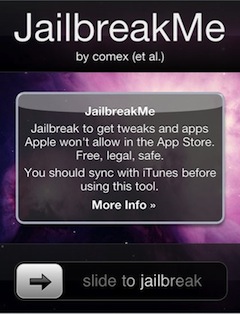
JailbreakMe is an extremely easy method to jailbreak your iPhone or iPod running iPhone OS 3.1.2 or higher, yes this includes iOS 4 on an iPhone 3G, iPhone 3GS, iPhone 4, and iPod touch.
JailbreakMe is entirely browser based and probably the easiest method around to jailbreak any compatible iOS device, if you still aren’t convinced here are the steps:

How to easily Jailbreak an iPhone with JailbreakMe

    jailbreak iphone 4
  • First you should backup your iPhone with iTunes just in case something doesn’t work
  • Open Safari on your iPhone and go to JailbreakMe.com
  • At the JailbreakMe screen (like screenshot), run your finger on the ’slide to jailbreak’ slider to start the jailbreak process
  • The jailbreak will now be downloaded to your iPhone and run itself, so don’t do anything and just let it run
  • Wait for the “Cydia has been added to your home screen.” pop up message, this tells you the jailbreak is complete


jailbreak successful cydia

  • Reboot your iPhone by turning it on and off
Amazingly enough, that’s it. The JailbreakMe process requires no downloads or USB tethering to a computer, it is entirely contained within the Safari browser and works very well. This is quite impressive and without a doubt the most simple and easiest jailbreak around to date.

Remember, a jailbreak is not a carrier unlock. The iPhone 4 carrier unlock is expected to be released soon, so have patience if you’re looking to bring your iPhone over to another network.

Jailbreak FAQ and Troubleshooting

Is jailbreaking illegal? – no, not anymore, but it may void your warranty with Apple. If you need to take your iPhone into service and you have a jailbroken device, it’s best for you to restore the iPhone.

How do I undo a Jailbreak? – you can reverse any jailbreak by simply hooking your iPhone up to a computer and then clicking the ‘Restore’ button within iTunes. This will restore the iPhone to factory defaults, which depending on your backup status you may lose data stored on your iPhone.

FaceTime and MMS aren’t working anymore! – early users of JailbreakMe may have experienced a problem with MMS and Facetime on their device after installing the jailbreak. This has since been fixed and jailbreakme has been updated, but if you happened to experience these problems all you need to do is the following: Update Cydia then Reset Network Settings. That will fix it. If for whatever reason updating Cydia doesn’t resolve the problem, you can try this command:

chmod 755 /private/var/mobile/Library; chmod 755 /private/var/mobile/Library/Preference
Then you need to Reset Network Settings – FaceTime and MMS will work fine again.